
.png&w=3840&q=75)
How To Guides
How to Save a Webpage as a PDF in Chrome: Step-by-Step Guide
Learn how to save any webpage as a PDF in Google Chrome. Follow simple steps, customize the layout, fix common issues, or convert the URL using KhanPDF.
How to Save Any Webpage as a PDF in Google Chrome
Saving a webpage as a PDF is one of the easiest ways to keep important online information available for later. You can save articles, research material, receipts, job postings, tutorials and documentation without worrying about the original page being changed or removed.
Google Chrome includes a built-in feature that lets you turn most webpages into PDF files without installing additional software. You can also use KhanPDF when you need a simple online solution for saving public webpages.
For a faster URL-based method, paste the webpage address into the free URL-to-PDF converter and generate a downloadable PDF directly from your browser.
This guide explains how to save any webpage as a PDF in Google Chrome, customize the final document and solve common formatting problems.
Quick Answer: How to Save a Webpage as a PDF in Chrome
To save a webpage as a PDF in Chrome, open the page and press Ctrl + P on Windows or Command + P on Mac. Select Save to PDF as the destination, adjust the layout and page settings, and click Save. Choose a folder, enter a file name and download the PDF to your device.
The complete process is:
- Open the webpage in Google Chrome.
- Wait for the page and its images to load.
- Press Ctrl + P or Command + P.
- Select Save to PDF.
- Adjust the layout, margins and other settings.
- Review the preview.
- Click Save.
Method 1: Use Chrome’s Built-In Save to PDF Feature
Chrome’s built-in print feature is the quickest option when the webpage is already open in your browser. It works well for articles, receipts, blog posts, guides and other pages with a simple printable layout.
Step 1: Open the Webpage in Google Chrome
Open Chrome and visit the webpage you want to save.
Before opening the print menu, wait for the entire page to load. Some websites load images, comments or other sections only after you scroll down the page.
For better results:
- Scroll through the complete webpage.
- Wait for all important images to appear.
- Expand any collapsed sections you want to include.
- Close cookie notices and subscription pop-ups.
* Remove any unnecessary banners covering the content.
* Pause videos or animations that may affect the layout.
Taking a few seconds to prepare the page can prevent missing images and incomplete sections in the final PDF.
Step 2: Open Chrome’s Print Menu
Once the page is ready, open the print menu using one of the following methods:
- Press Ctrl + P on a Windows computer.
- Press Command + P on a Mac.
- Click the three-dot menu in the upper-right corner of Chrome and select Print.
- Right-click an empty area of the webpage and select Print when the option is available.
Chrome will open a print preview showing how the webpage will appear as a PDF.
Step 3: Select Save to PDF
Find the Destination setting inside the print preview.
Select Save to PDF instead of choosing a physical printer. Chrome will now prepare the webpage as a digital PDF document.
The wording may appear slightly different depending on your operating system, but the PDF option is normally available inside the destination or printer menu.
Step 4: Select the Pages You Want to Save
Chrome normally selects all printable pages by default.
You can choose:
- All pages
- The current page
- A custom page range
- Selected pages only
For example, if the preview contains 12 pages but you only need pages 1 to 5, enter that range before saving.
Always check the preview first. Webpages sometimes create blank pages or include sections that you do not need.
Step 5: Choose Portrait or Landscape Layout
Chrome lets you select the orientation of the PDF.
Portrait is usually better for:
- Articles
- Blog posts
- Receipts
- News pages
- Research notes
- Standard text documents
Landscape is usually better for:
- Wide tables
- Dashboards
- Reports
- Charts
- Technical documentation
- Pages with horizontal content
When part of the webpage is cut off, changing from portrait to landscape may solve the problem.
Step 6: Adjust the Advanced Settings
Open More settings to customize the PDF before downloading it.
Paper Size
Select the paper size that best suits the content.
Common options include:
- A4
- Letter
- Legal
A4 is commonly used internationally, while Letter is widely used in the United States and Canada.
Margins
Margins control the empty space around the content.
Chrome may provide the following options:
- Default margins
- Minimum margins
- No margins
- Custom margins
Reducing the margins allows more webpage content to fit on each page. However, content placed too close to the edge may be harder to print later.
Scale
Scale controls the size of the webpage content inside the PDF.
Reduce the scale when:
- Text or images are cut off.
- A wide table does not fit.
- The PDF contains too many pages.
- The layout appears too large.
Increase the scale when the text appears too small or difficult to read.
Headers and Footers
Chrome can automatically include details such as:
- Webpage title
- Original URL
- Date
- Page number
Turn off Headers and footers when you want a cleaner PDF without extra information at the top and bottom of each page.
Keep them enabled when the original URL and date are important for research, recordkeeping or evidence.
Background Graphics
Some webpages use background colours, graphics and visual sections that Chrome may not include by default.
Enable Background graphics when you want to preserve:
- Background colours
- Website branding
- Coloured sections
- Visual buttons
* Design elements
Background graphics can improve the appearance of the PDF, but they may also increase the file size.
Step 7: Review and Save the PDF
Carefully review the print preview before downloading the file.
Check for:
- Missing images
- Cut-off text
- Overlapping content
- Unwanted blank pages
- Incorrect orientation
- Unnecessary headers and footers
- Missing background colours
When everything looks correct, click Save.
Choose a folder, enter a descriptive file name and save the PDF to your device.
A clear file name such as chrome-webpage-pdf-guide.pdf is easier to find than a generic name such as document1.pdf.
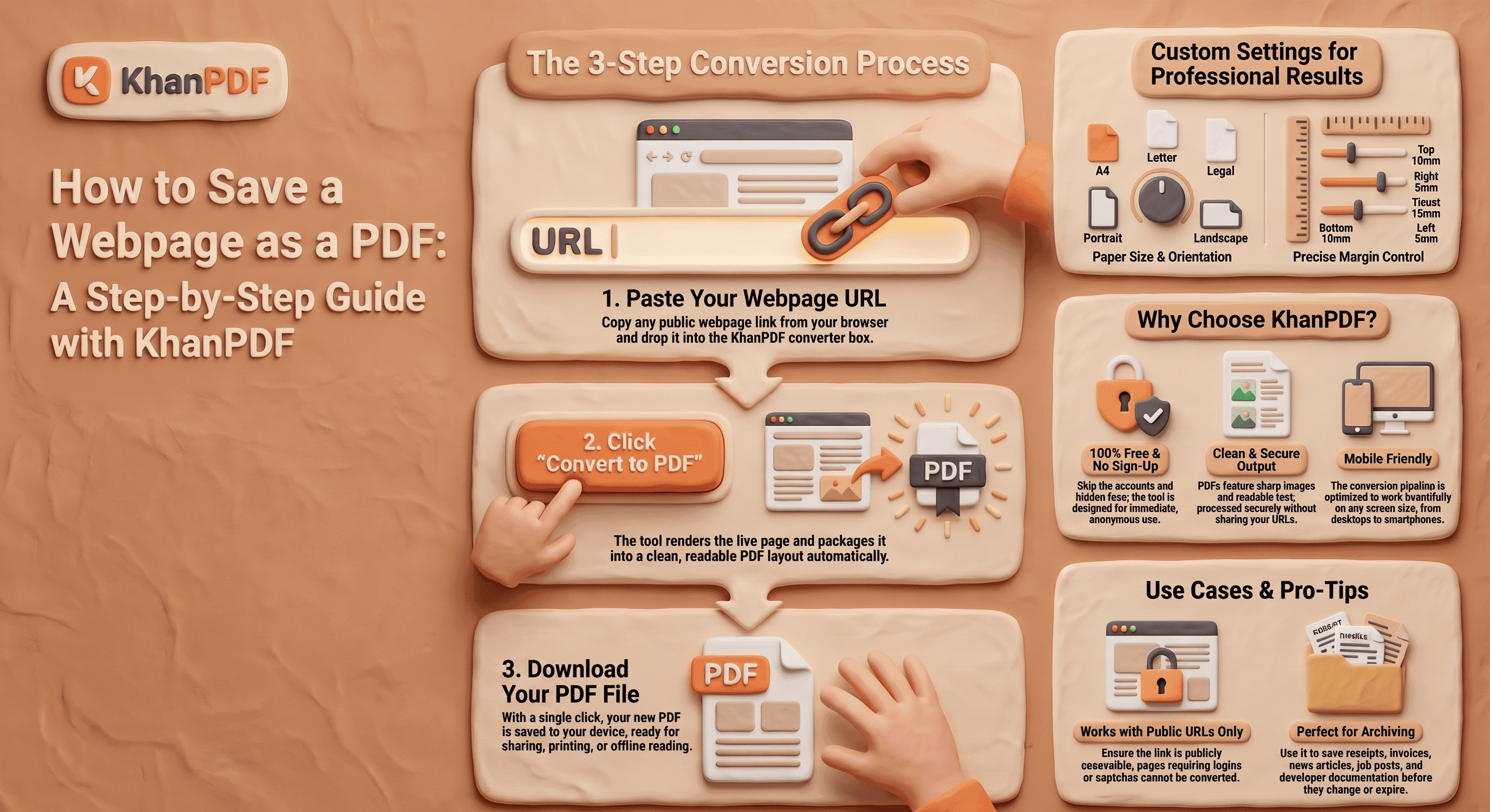
Method 2: Convert a Chrome Webpage Using KhanPDF
Chrome’s built-in method works well for many pages, but some websites have complicated layouts that do not print correctly. Large images, sidebars, advertisements and dynamically loaded sections may appear differently in the final document.
In these situations, you can use KhanPDF as an alternative way to convert a public webpage.
Follow these steps:
- Open the webpage in Chrome.
- Copy the complete URL from the address bar.
- Open the KhanPDF URL-to-PDF tool.
- Paste the webpage URL into the conversion field.
- Select your preferred conversion settings.
- Start the conversion.
- Wait while the PDF is generated.
- Open or download the finished file.
You can access the online webpage-to-PDF converter directly from any modern browser.
This method is useful when you already have the webpage address and want to create a PDF without manually configuring Chrome’s print settings.
Chrome Print or KhanPDF: Which Method Should You Use?
Both methods can help you save webpages, but each one is better suited to different situations.
Use Chrome’s Built-In Method When:
- The webpage is already open in your browser.
- You want to save a private or logged-in page.
- You only need specific pages.
- You want to control basic print settings.
- The webpage has a clean print layout.
Use KhanPDF When:
- You have a public webpage URL.
- You want a quick browser-based conversion.
- Chrome changes or cuts off the original layout.
- You do not want to install a browser extension.
- You want to convert the webpage from another device.
Private dashboards, account pages and login-protected content may not be available to an online converter. Chrome’s built-in method is usually more suitable for pages that require you to be signed in.
How to Save an Entire Webpage as a PDF
When people search for how to save an entire webpage, they may be asking for one of two different results.
The first is a normal multi-page PDF containing all printable content. Chrome’s Save to PDF feature is designed for this purpose.
The second is one long visual capture of the entire webpage. This is usually called a full-page screenshot rather than a standard PDF document.
To save all printable webpage content with Chrome:
- Scroll through the complete page first.
- Open the print preview.
- Select All under Pages.
- Check that every section appears in the preview.
- Adjust the scale if content is cut off.
- Save the document as a PDF.
For a public page that does not print correctly, try the KhanPDF URL-to-PDF tool as an alternative.
How to Save a Webpage as a PDF Without Ads
Advertisements, pop-ups and navigation menus can make a saved PDF difficult to read.
Before opening the print menu:
- Close visible advertisements when possible.
- Dismiss cookie notices.
- Close newsletter pop-ups.
- Use the website’s reader mode when available.
- Look for a print-friendly version of the article.
- Select only the PDF pages containing useful content.
Some websites automatically hide advertisements when Chrome opens the print preview. Others may include them because they do not have a properly designed print layout.
Common Chrome Webpage-to-PDF Problems
Images Are Missing from the PDF
Some websites load images only when you scroll down the page.
To fix this:
- Scroll through the entire webpage.
- Wait for every image to load.
- Open the print preview again.
- Enable background graphics.
- Refresh the webpage if necessary.
Part of the Webpage Is Cut Off
This often happens when a page is wider than the selected paper size.
Try the following solutions:
- Change the layout to landscape.
- Reduce the scale.
- Reduce the margins.
- Select a larger paper size.
* Use an online URL-to-PDF converter.
The PDF Contains Blank Pages
Blank pages may be caused by the website’s print layout.
Try:
- Selecting a custom page range.
- Reducing the scale.
- Changing the orientation.
- Closing expandable page sections.
- Reviewing the preview before saving.
Background Colours Are Missing
Open More settings and enable Background graphics.
Chrome may exclude colours and background images by default to reduce printing costs and file size.
The PDF Text Is Too Small
Increase the scale or switch from landscape to portrait.
You should also check whether the original webpage has a mobile or desktop layout that affects the text size.
The File Saves as HTML Instead of PDF
Save Page As and Save to PDF are different Chrome features.
Save Page As downloads the webpage and its supporting files. To create a PDF, open the print menu and select Save to PDF as the destination.
Chrome Does Not Show Save to PDF
Check that:
- The correct destination menu is open.
- You have not switched to the system print dialog.
- Chrome is updated.
- Printing is not restricted on your device.
- Your work or school administrator has not disabled PDF printing.
Useful Reasons to Save a Webpage as a PDF
Save Articles for Offline Reading
A PDF lets you read an article later without keeping the original webpage open. It is useful during travel or when internet access is limited.
Preserve Job Postings
Job listings may be removed after an application deadline. Saving the posting helps you review the responsibilities and requirements before an interview.
Store Receipts and Invoices
Online receipts, order confirmations and invoices can be saved for accounting, reimbursement, warranty claims or personal records.
Keep Research Material
Students, researchers and writers can save online sources before they are edited, moved or deleted.
Save Technical Documentation
Developers can preserve tutorials, setup instructions, GitHub pages and troubleshooting documentation for offline reference.
Archive Important Online Information
PDF files are useful for keeping a dated copy of public announcements, policies, schedules and other important pages.
Tips for Creating a Better Webpage PDF
For a cleaner and more useful PDF:
- Wait until the webpage fully loads.
- Scroll through the page before saving.
- Close pop-ups and cookie banners.
- Expand important collapsed sections.
- Use portrait mode for text-heavy pages.
- Use landscape mode for wide content.
- Enable background graphics when appearance matters.
- Disable headers and footers for a cleaner layout.
- Review every page in the preview.
- Use a clear and descriptive file name.
- Keep the original URL with the PDF when preserving research.
- Confirm that important text and images appear correctly.
Where can I convert a webpage with KhanPDF?
Visit KhanPDF or open the URL-to-PDF converter to paste a public webpage URL and generate a PDF.
Conclusion
Chrome makes it easy to save most webpages as PDFs through its built-in print menu. Open the webpage, press Ctrl + P on Windows or Command + P on Mac, choose Save to PDF and adjust the settings before downloading your document.
For public webpages that do not print correctly, visit KhanPDF or use the free URL-to-PDF converter to generate a PDF directly from the webpage address.
Whichever method you choose, review the final document carefully to make sure the important text, images and page sections have been preserved correctly.
FAQ
Frequently asked questions
Ready to try it yourself?
Convert, compress, and craft PDFs with KhanPDF — fast, free, fidelity-first.
Convert URL to PDF