
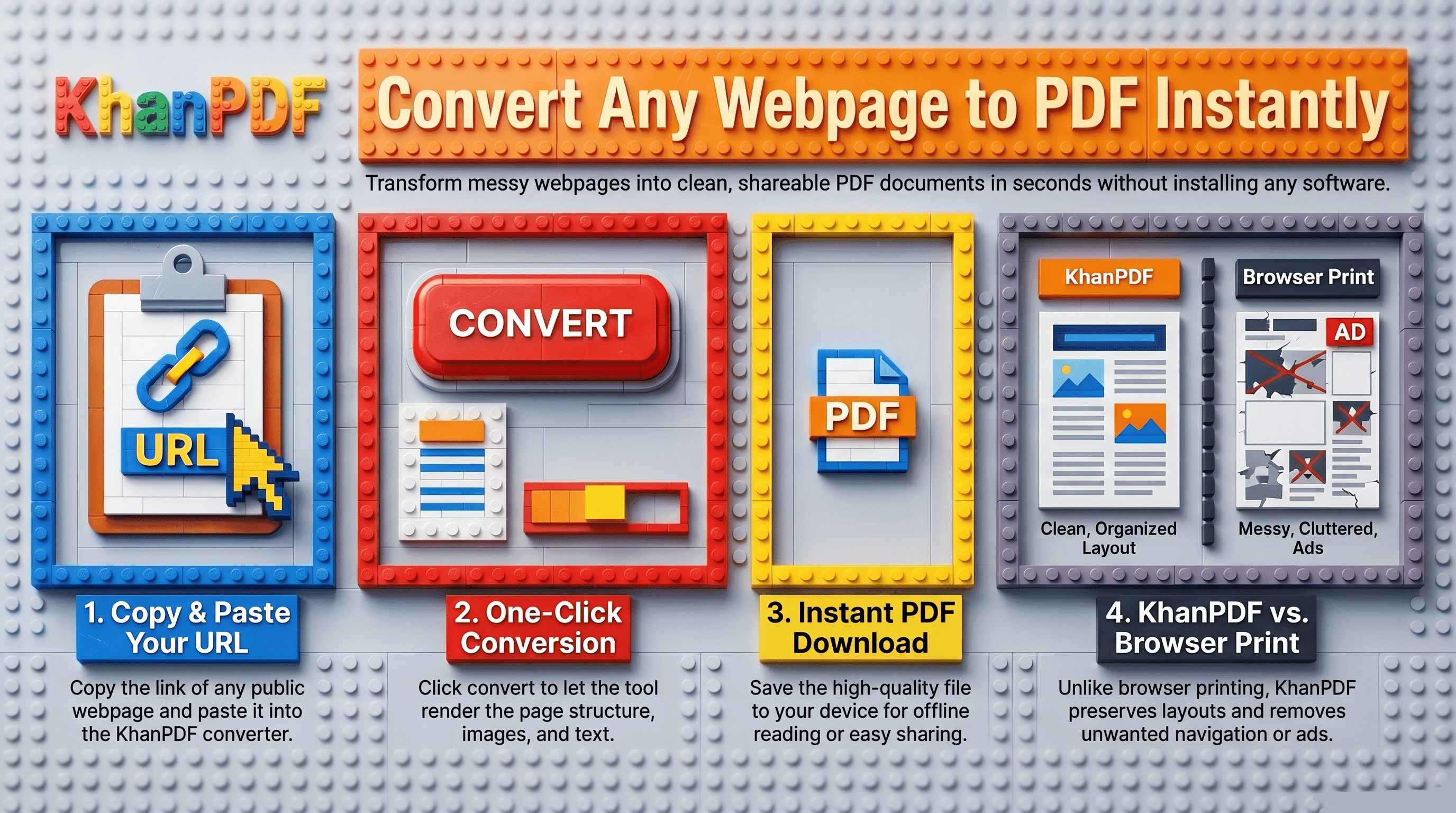
URL TO PDF
URL to PDF: Convert Any Webpage to PDF Online for Free
Turn any public webpage into a clean PDF document in seconds. Paste a URL, generate a PDF, and download it instantly with KhanPDF.
Introduction
Have you ever found a useful article, online documentation page, tutorial, invoice, or blog post and wanted to save it as a PDF?
Most websites don't offer a download button. Browser print options often break layouts, remove images, or create messy PDFs.
I run into this problem regularly when saving technical documentation, research articles, and reference guides for offline reading. Instead of relying on browser print functions, I use KhanPDF to convert webpages directly into clean PDF files.
In this guide, you'll learn what URL-to-PDF conversion is, when it helps, and how to convert any webpage into a PDF in seconds.
What Is URL to PDF?
Explain simply.
A URL-to-PDF converter turns a webpage into a downloadable PDF document.
Instead of copying content manually or taking screenshots, the converter renders the webpage and generates a PDF version that preserves the page structure, text, images, and formatting.
For example:
- Blog posts
- Documentation pages
- Product pages
- Research articles
- Knowledge-base content
- Online reports
can all be converted into PDF files using a URL.
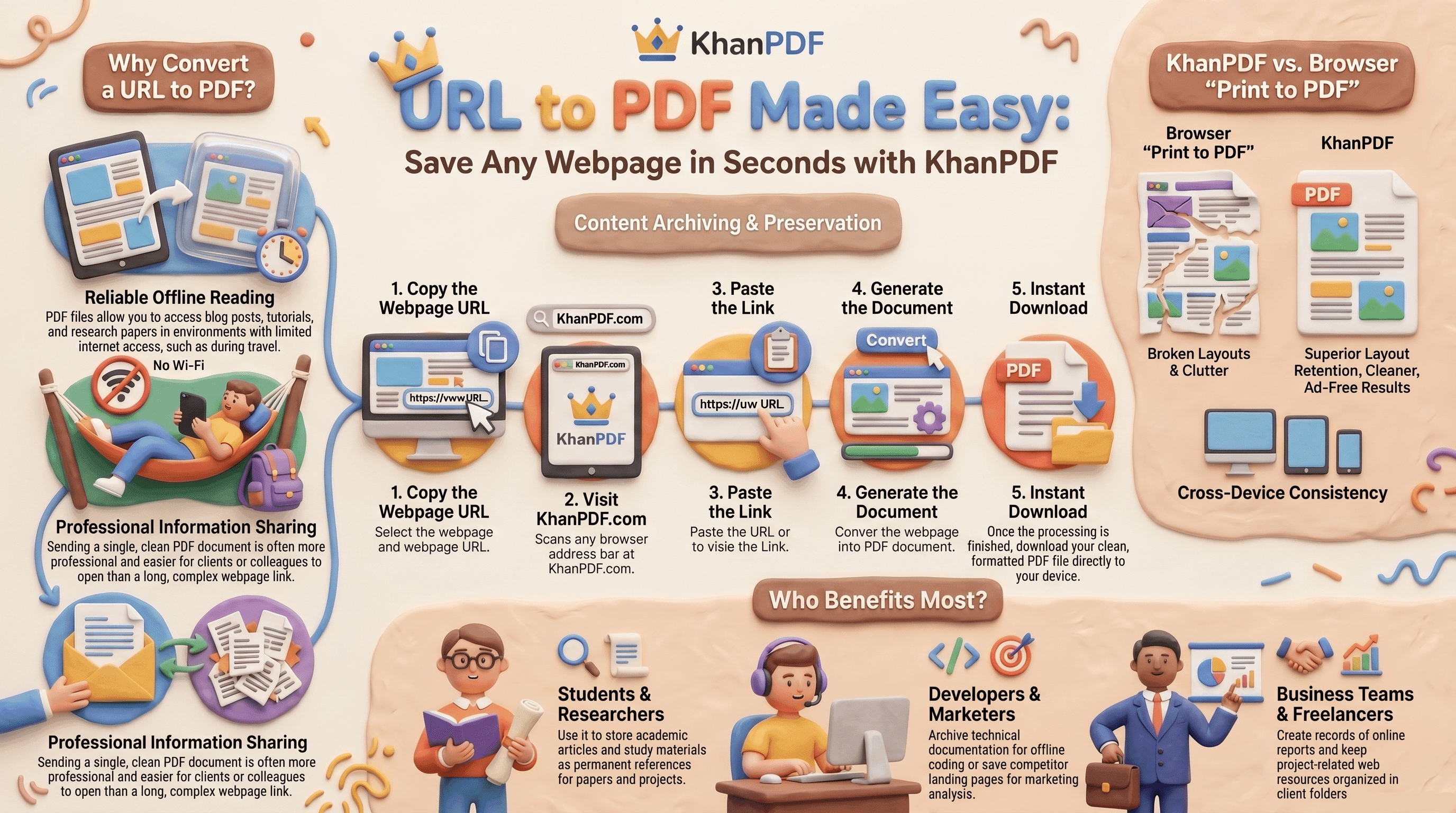
Flow:
- URL
↓
- KhanPDF
↓
- Render Webpage
↓
- Generate PDF
↓
- Download PDF
Why Convert a URL to PDF?
Users usually want PDFs for one of these reasons:
- Offline Reading
Save articles and guides for travel or places with limited internet access.
- Documentation Archiving
Keep permanent copies of important web content.
- Research and References
Store sources used in academic or professional work.
- Sharing
PDFs are easier to email and distribute than webpage links.
- Printing
PDFs generally produce cleaner printed documents.
Common Problems With Browser Print-to-PDF
Many people try:
File → Print → Save as PDF
Unfortunately, this often creates problems:
- Broken page layouts
- Missing images
- Navigation menus included
- Advertisements in output
- Cut-off content
- Multiple blank pages
A dedicated URL-to-PDF converter handles rendering more reliably.
How to Convert a URL to PDF Using khanPDF
This should be the main section.
Step 1: Copy the Webpage URL
Open the webpage you want to save and copy its address.
Example:
https://example.com/article
- Step 2: Open KhanPDF
Visit KhanPDF and open the URL-to-PDF converter.
- Step 3: Paste the URL
Paste the webpage link into the input field.
- Step 4: Click Convert
KhanPDF loads the page and generates a PDF.
- Step 5: Download the PDF
Once processing is complete, download the generated PDF file.
The entire process typically takes only a few seconds.Tutorial
How to Convert a URL to PDF Using KhanPDF
Features of KhanPDF's URL to PDF Converter
- Fast Conversion
- Generate PDFs within seconds.
- No Software Installation
- Everything works directly in your browser.
- High-Quality Output
- Preserves webpage content accurately.
- Free to Use
- Convert public webpages without complicated setup.
Works on Any Device
- Windows
- macOS
- Linux
- Android
- iPhone
- Tablets
Simple Workflow
Paste URL → Generate PDF → Download
When I Use URL-to-PDF Conversion
I use URL-to-PDF conversion almost every week.
Some common examples include:
- Saving Technical Documentation
When working on development projects, I often save API documentation pages as PDFs for offline access.
- Research Collection
If I'm comparing tools or services, I convert articles into PDFs and store them in project folders.
- Long Tutorials
Some tutorials disappear or change over time. Creating a PDF copy helps preserve the original content.
- Travel Reading
I frequently save long-form articles before flights or trips where internet access may be limited.
For these situations, KhanPDF has become my preferred way to create clean PDF copies of webpages.
-URL to PDF vs Browser Save as PDF
Feature Browser Print KhanPDF
Quick Conversion ✓ ✓
Better Formatting Limited ✓
No Manual Setup ✗ ✓
Works Across Devices Limited ✓
Easy Sharing ✓ ✓
Optimized PDF Output ✗ ✓
Best Practices When Converting URLs to PDFs
- Use Public URLs
The webpage should be publicly accessible.
- Check Dynamic Content
Some websites load content after the page opens.
- Review Before Sharing
Always verify that sensitive information isn't included.
- Keep PDFs Organized
Use descriptive filenames for easier searching later.
Conclusion
Converting a URL to PDF is one of the easiest ways to save online content for offline access, sharing, printing, or archiving.
Whether you're saving documentation, research articles, tutorials, or reference materials, a dedicated URL-to-PDF converter produces cleaner results than traditional browser print methods.
If you need a fast and simple way to convert webpages into PDFs, KhanPDF makes the process straightforward: paste a URL, generate a PDF, and download the result in seconds.
Try khanPDF today and convert any webpage URL into a PDF document online for free.
FAQ
Frequently asked questions
Ready to try it yourself?
Convert, compress, and craft PDFs with KhanPDF — fast, free, fidelity-first.
Convert URL to PDF